If you're a graphic designer learning SketchUp, stop settling for the dry, "out-of-the-box" 3D look. You've probably noticed that most tutorials focus on architecture or hyper-realistic rendering. But as a visual communicator, what you actually need isn’t more complexity—it's visual control.
Most designers assume the Styles panel is just for cosmetic presets. They use it to change a background or toggle shadows and then stop. But in reality, SketchUp Styles are much more powerful. They control how your geometry is interpreted, allowing the same model to move from a technical diagram to a lush illustration with a few clicks.
What SketchUp Styles Actually Control
To truly use Styles as a design tool, you must move beyond the "Select" tab and into the Edit tab. Here is how you control the "graphic" of your 3D model:
Why This Matters for Graphic Designers
If you are a graphic designer, you already know that style is never just aesthetic. The way something looks is the argument you're making. It's how you win the client before they've read a single word.
SketchUp Styles give you that same power in 3D. The geometry is data — Styles are how you turn that data into a point of view.
Same model. Three completely different arguments. That's not a technical skill. That's graphic design applied to a 3D tool.
Visual Strategy vs. Decoration
When you stop using SketchUp to imitate reality and start using it as a graphic tool, your work becomes more intentional. You aren't just "rendering" a house; you are choosing a visual strategy that communicates a specific message.
The geometry doesn't change. The message does.
What SketchUp Styles Actually Control
When you open the Styles panel in SketchUp, you’re controlling:
This means the exact same model can look:
No remodeling required.
Just visual interpretation.
See you next time,
Sanaz Vazirian
Architect, Graphic Designer, Professor
Founder — SketchUp for Graphic Designers
p.s. Black Edges? Not Anymore!
Most designers assume the Styles panel is just for cosmetic presets. They use it to change a background or toggle shadows and then stop. But in reality, SketchUp Styles are much more powerful. They control how your geometry is interpreted, allowing the same model to move from a technical diagram to a lush illustration with a few clicks.
What SketchUp Styles Actually Control
To truly use Styles as a design tool, you must move beyond the "Select" tab and into the Edit tab. Here is how you control the "graphic" of your 3D model:
- Edge Settings: This is where you adjust Profiles (thickening outer lines to create silhouette), Depth Cue (thickening foreground lines to simulate atmospheric perspective), and Extensions (to give a hand-drawn feel).
- Face Settings: Toggle between Shaded with Textures, Monochrome (great for checking form and contrast), or X-ray mode for technical clarity.
Why This Matters for Graphic Designers
If you are a graphic designer, you already know that style is never just aesthetic. The way something looks is the argument you're making. It's how you win the client before they've read a single word.
SketchUp Styles give you that same power in 3D. The geometry is data — Styles are how you turn that data into a point of view.
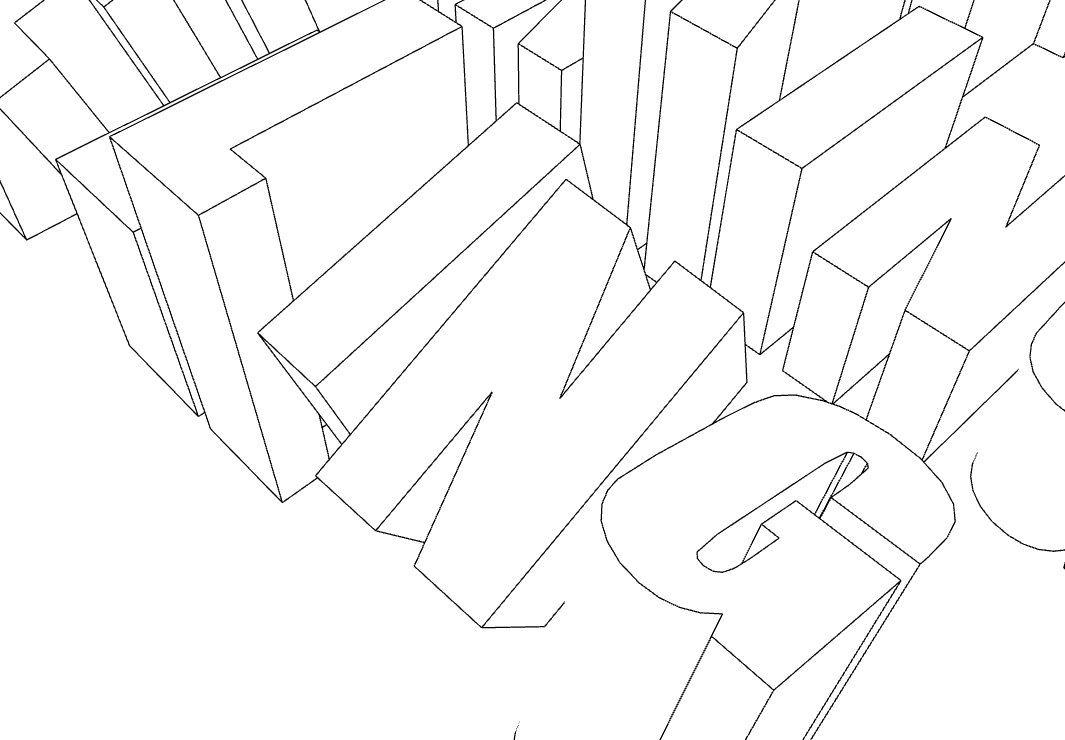
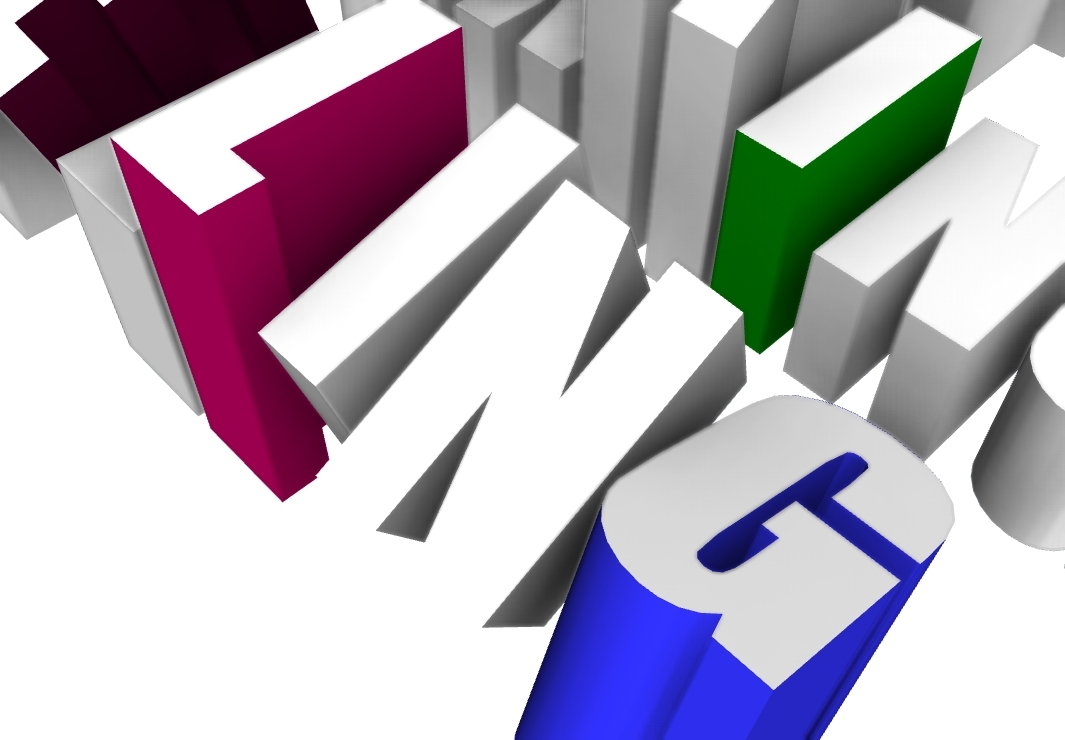
- Flat and diagrammatic. Turn Edges off and switch to Shaded faces for a clean, vector-like look. This reads as confident and designed — not like a 3D model, but like a considered diagram.
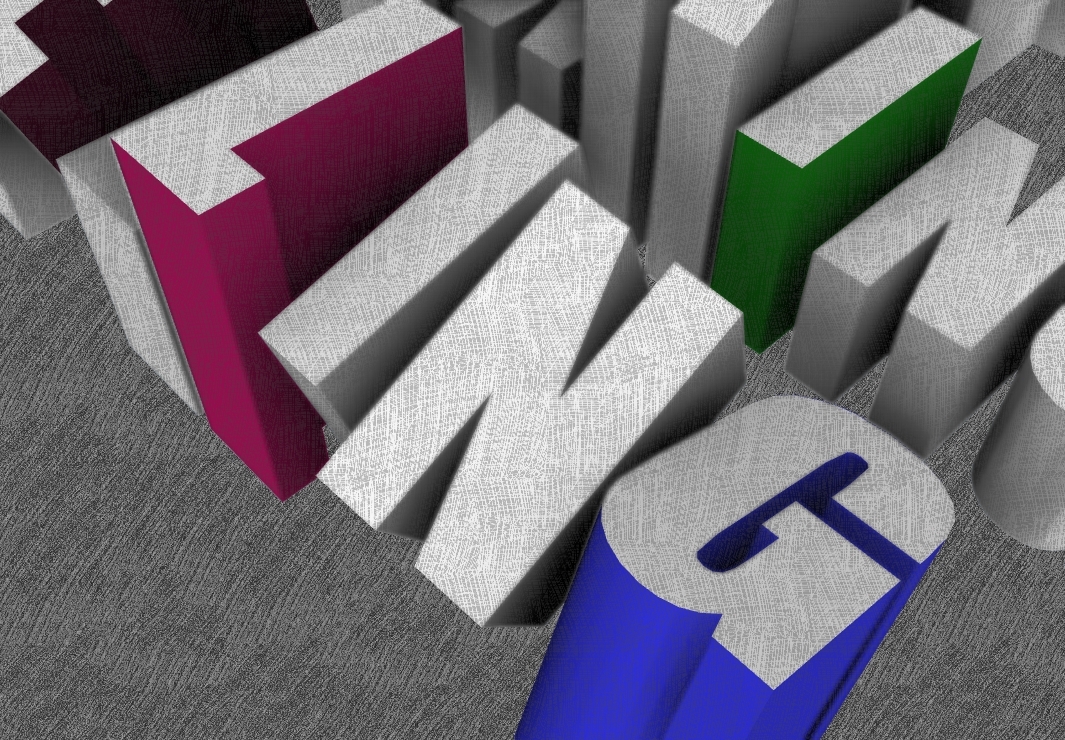
- Dimensional and expressive. Turn on Profiles and Jitter to add weight and character to your linework. This is your conceptual presentation style — it signals creative thinking, not finished construction.
- Monochrome. Strip colour away entirely and the form has to speak for itself. Designers know this instinctively: if it works in black and white, it works. Use this when you want the client focused on shape, proportion, and structure — not surface.
Same model. Three completely different arguments. That's not a technical skill. That's graphic design applied to a 3D tool.
Visual Strategy vs. Decoration
When you stop using SketchUp to imitate reality and start using it as a graphic tool, your work becomes more intentional. You aren't just "rendering" a house; you are choosing a visual strategy that communicates a specific message.
The geometry doesn't change. The message does.
What SketchUp Styles Actually Control
When you open the Styles panel in SketchUp, you’re controlling:
- Edge profiles (line thickness variation)
- Depth cue (atmospheric perspective)
- Edge extensions and endpoints
- Sketchy vs precise line rendering
- Face styles (shaded, textured, monochrome)
- Background, sky, and ground contrast
- Shadow intensity and direction
This means the exact same model can look:
- Technical
- Conceptual
- Illustrative
- Graphic
- Presentation-ready
No remodeling required.
Just visual interpretation.
See you next time,
Sanaz Vazirian
Architect, Graphic Designer, Professor
Founder — SketchUp for Graphic Designers
p.s. Black Edges? Not Anymore!
In my classes, 90% of graphic designers get stuck with the same issue. I created a quick guide to explain it in Adobe language! Once you understand it, you will never make the same mistake.
GRAB YOURS HERE!